First let’s make sure you’re scanning with your iPhone properly;
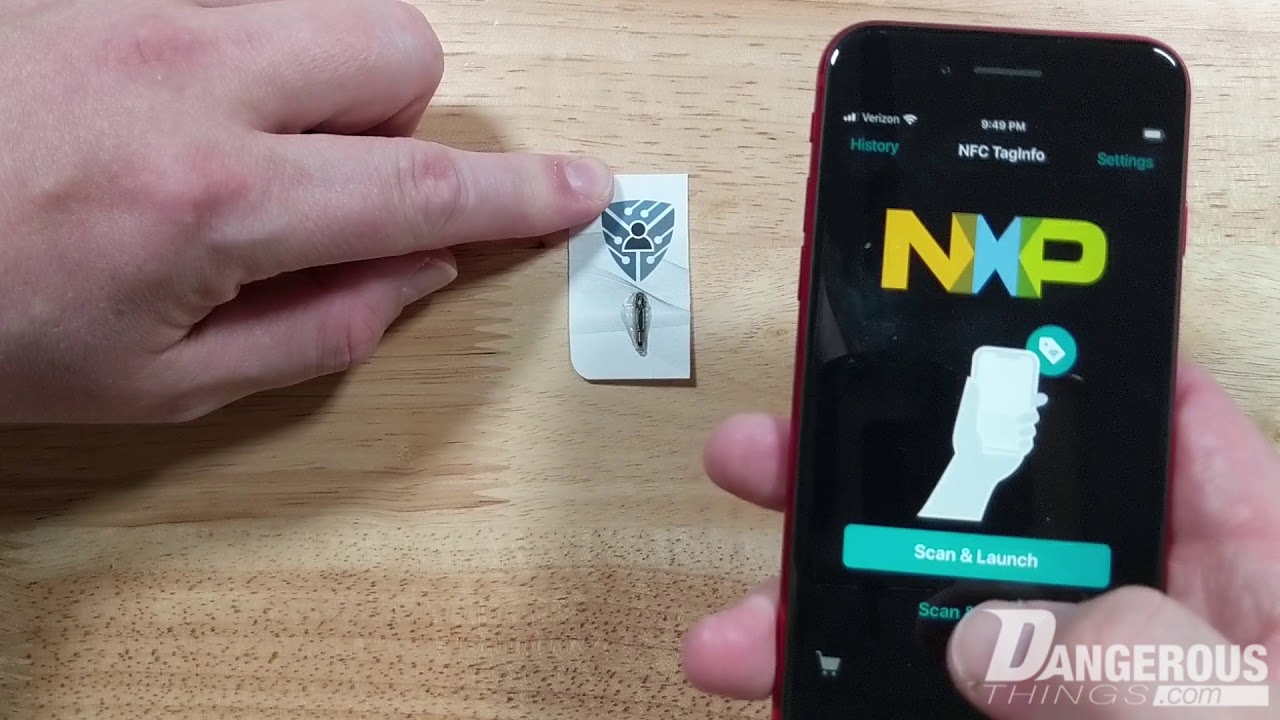
The short answer is this.. the chip’s memory is like a tiny hard drive that only stores about 1k of information (888 bytes to be exact). The apps are special because they can see the chip and read the memory and tell you about the specific details about the chip. But, if there are no “file” on the chip, or the “file” is somehow broken, then when you scan it outside the app, the phone reads the empty chip and does nothing. On an NFC chip, this is called “NDEF data”, and it must be formatted correctly for it to work. The apps write the data (your business URL) to the chip with the correct format.. or they are supposed to.
So we can be sure the NDEF data is formatted correctly, try scanning with taginfo like @tac0s said above, then send a screenshot of the “full scan” data page.
.. ok well you did that while I was slowly writing my response hah  good work. looks correct.
It seems other people have issues with consistent “background NFC read” feature.. this is the feature that allows the iPhone will read an NFC tag with no app open.

No responses though.. hmm. According to AI;
The iPhone 15 Pro Max has background NFC tag reading enabled automatically. There is no master ON/OFF toggle in Settings. To scan an NFC tag, simply wake your screen and hold the very top edge of your phone near the tag.
To use and scan NFC tags on your iPhone Pro Max 15, ensure these criteria are met and follow these tips:
Background Scanning Requirements
- Device state: The iPhone screen must be on and unlocked. It must have been unlocked at least once since the last restart.
- No conflicts: Background scanning temporarily pauses if Apple Pay Wallet is open, the camera is in use, you have Airplane Mode on, or another NFC session is active.
- Tag format: The NFC tag must be properly encoded with data (like a website URL) for the iPhone to natively respond.
While NFC runs automatically, you can add an NFC Tag Reader shortcut to your Control Center for quick access to manual scans when needed under Settings > Control Center